Transcription for Content Creators
Transcription for creators: a practical reference guide
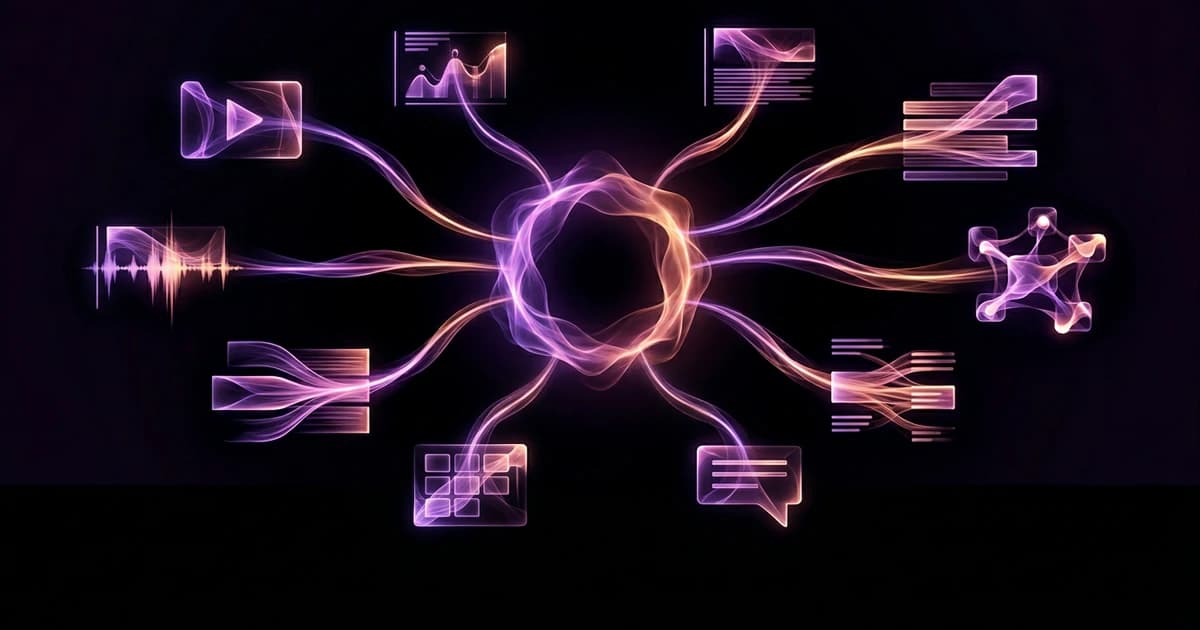
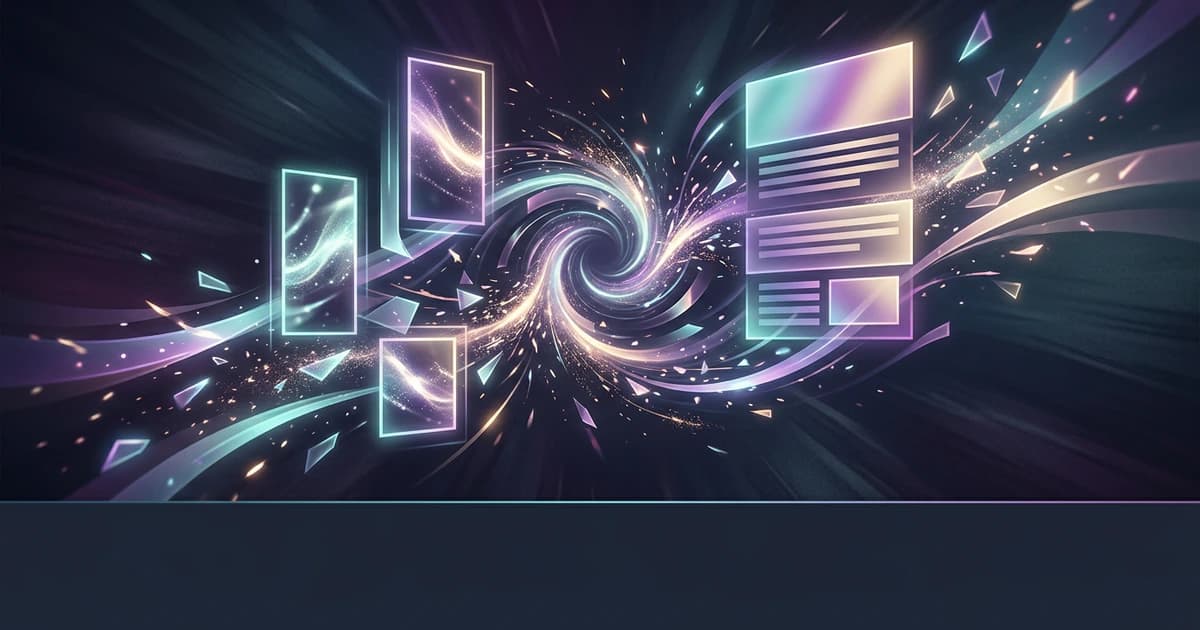
Transcription for creators converts spoken audio and video into editable text, subtitles, and action-ready assets so you can edit faster, reach more viewers, and repurpose content. In practice, it means turning your recordings into clean transcripts, caption files, and searchable text you can reuse across platforms. Confirm primary keyword uniqueness before publishing — this exact primary keyword appears to already exist in the site index; consider canonicalization or a nearby variant if publishing.
Why transcription matters for creators
Transcription directly affects how fast you can ship content and how far it travels. A clean transcript becomes the backbone for captions, show notes, blog posts, and clips, so you are not re-watching footage to find moments. It also improves accessibility and discoverability, since captions help viewers follow along and search engines can index text more reliably than audio.
Speed is the second payoff. Instead of scrubbing through a timeline, you can scan text, search for phrases, and jump to exact timestamps. That reduces editing time, especially for long recordings like podcasts or streams. Over time, this compounds into more output with the same effort.
Repurposing is where transcription often pays for itself. Once you have text with timestamps, you can pull quotes for short-form clips, generate titles, and extract topics for threads or newsletters. The same hour of content can produce dozens of assets without guesswork.
Accessibility is not optional anymore. Captions support viewers who watch without sound and those who rely on subtitles. Clean, readable captions also improve retention, because viewers can follow complex sections even in noisy environments.
Quick-start workflow: from upload to repurposed clips
A practical workflow keeps decisions simple and repeatable. You upload once, make a few key choices, fix obvious errors, and export what you need for your platform. Then you reuse the transcript to create additional assets.
Start by preparing your file and choosing basic settings. Good input audio saves time later, and selecting the right options avoids unnecessary rework.
- Upload your audio or video file (MP3, WAV, M4A, MP4, MOV/WEBM variants are commonly accepted).
- Choose language or let the system auto-detect if you are unsure.
- Enable speaker identification if your plan supports it and you have multiple speakers.
- Pick speed vs. quality if offered on your tier; faster modes are fine for drafts.
After processing, you move into light editing and formatting. You are not rewriting the entire transcript; you are fixing names, punctuation, and obvious mishears so exports look professional.
- Scan for proper nouns, brand names, and repeated errors; fix them once with find-and-replace.
- Normalize punctuation and sentence breaks so captions read naturally.
- Check speaker labels if diarization is enabled; merge or split where needed.
Finally, export the formats you need and reuse the text for clips and posts. Choose subtitle formats for video platforms and text formats for writing or collaboration.
- Export SRT or VTT for captions; use TXT or DOCX for scripts and show notes.
- Keep timestamps if you plan to cut clips or add chapters.
- Pull 3–10 highlight quotes and note their timestamps for quick clipping.
This basic loop can be completed in minutes for short clips and under an hour for long-form content once you are familiar with your tools.
Detailed workflows and timing examples
Different creator formats benefit from slightly different transcription setups. The goal is the same, but your export choices and editing depth change based on how the content will be used.
Podcast episode (≈60 minutes)
For a one-hour podcast, transcription typically finishes in minutes to a short queue time, depending on your plan and file size. The value comes from timestamps, speaker labels, and structured outputs you can reuse for show notes and chapters.
Begin with speaker identification if available, since podcasts usually have hosts and guests. After processing, spend 10–20 minutes cleaning names, adding paragraph breaks, and marking sections like intro, main topic, and outro. Then export both a readable document and caption files.
- Use DOCX or TXT for show notes and website copy.
- Use SRT for YouTube or social captions if you publish video versions.
- Keep timestamps for chapter markers in YouTube or podcast players.
From the transcript, extract a short summary and 5–10 key quotes. Those quotes become clip candidates, and the timestamps let you jump directly to the moment in your editor. If your tool supports summaries or topic extraction on paid plans, it can speed up this step.
YouTube long-form (10–30 minutes)
For YouTube, captions and chapters are the priority. A 10–30 minute video usually requires a lighter cleanup pass, focused on readability rather than verbatim accuracy. Viewers care about flow and clarity in captions.
After transcription, review the first few minutes to set style, then skim the rest for obvious issues. Add chapter headings based on topic shifts and ensure timestamps align with those breaks. Export SRT or VTT for upload, and keep a text copy for your description and pinned comment.
- Use VTT or SRT for captions, depending on your editor and platform preference.
- Create 3–6 chapters with timestamps for navigation.
- Reuse the transcript to draft the video description and tags.
If you plan to localize, use translation features to generate additional language transcripts, then export localized subtitle files. This can expand reach without re-recording.
Short-form clips (1–3 minutes)
Short clips benefit from speed and precision. You are usually cutting from a longer source, so word-level timestamps are especially helpful. These allow you to select exact phrases without scrubbing.
Generate a transcript of the source, then search for strong hooks or emotional peaks. Mark 5–15 candidate lines and use timestamps to pull clips quickly. Keep captions concise and readable, often with line breaks that match natural pauses.
- Look for sentences under 12–16 words for clean caption lines.
- Emphasize keywords early in the clip to hook viewers.
- Export SRT and consider burning captions in your editor for social feeds.
For high-volume creators, batch processing can save time. Upload multiple files, let them process in parallel if your plan supports it, and review transcripts in one session.
Live stream highlights
Streams are long and messy, so transcription is your index. Even if you do not publish full captions, a transcript helps you find highlights without rewatching hours of footage.
Transcribe the full stream, then search for keywords like “crazy,” “first time,” or specific game or topic terms. Mark timestamps and create a shortlist of highlight moments. Export clips and add concise captions only to the final edits.
- Use search to jump to likely highlight moments.
- Keep a running list of timestamps during review.
- Export only what you need; do not over-edit the full transcript.
Best practices and common pitfalls
Good transcription starts before you hit record. Clean audio and consistent speaking patterns reduce errors and speed up editing. Small setup choices can save significant time later.
Audio quality matters more than most creators expect. A simple, close mic with stable gain will outperform expensive gear used poorly. Avoid echo and background noise, and keep mic distance consistent between speakers.
When you review transcripts, aim for “clean readable” rather than perfect verbatim. Over-editing wastes time and often does not improve captions. Focus on clarity, punctuation, and names.
Captions can be delivered as separate files or burned into the video. Separate files keep flexibility for edits and multiple languages, while burned captions guarantee appearance on platforms that autoplay without sound.
Common pitfalls to avoid include inconsistent speaker labels, overlong caption lines, and ignoring timing. If lines are too long, viewers cannot read them comfortably. If timing is off, captions feel disconnected from speech.
- Keep caption lines short and split at natural pauses.
- Verify names, brands, and jargon early in the transcript.
- Use consistent speaker labels or remove them for single-speaker content.
- Decide early between separate captions and burned-in captions based on your platform.
Feature checklist: what to expect from a transcription tool
A creator-friendly transcription tool should support your workflow without forcing workarounds. You want reliable recognition, flexible exports, and editing controls that match how you produce content.
At a minimum, expect support for common audio and video formats and language auto-detection. For more advanced workflows, look for timestamps, speaker identification, and batch processing so you can scale output.
- File support for common formats like AAC, FLAC, M4A, MP3, MP4, OGG, WAV, and WEBM.
- Language auto-detection across many languages, plus translation when needed.
- Export options: TXT and SRT on entry plans; VTT, DOCX, and JSON on higher plans.
- Word-level timestamps on paid tiers for precise editing and clip extraction.
- Speaker identification on paid tiers for multi-speaker content.
- Batch upload and parallel processing on higher plans to handle volume.
Accuracy depends on audio quality, accents, and domain vocabulary. Many platforms report high accuracy on clear audio, but you should expect to make light edits. Some tools offer speed vs. quality modes on free tiers, letting you trade turnaround time for accuracy.
On the backend, providers vary. Some systems use self-hosted Whisper-based models for free tiers and route paid usage to providers like ElevenLabs Scribe, which can include native diarization and webhook-based processing for longer files. This routing helps balance cost, speed, and features across plans.
Privacy and data handling are also part of the checklist. Look for clear documentation on how files are processed and stored, and whether you can delete data after use. If you handle sensitive content, confirm retention and access controls.
How Wisprs fits creator workflows
After you understand the workflow, the tool should feel like a shortcut, not a detour. Wisprs is designed to map closely to how creators actually work: upload, transcribe, edit lightly, export, and repurpose.
Wisprs accepts common audio and video formats and supports language auto-detection across 100+ languages, with translation available when you need it. Free-tier processing uses self-hosted Whisper-based models with speed vs. quality options, while paid plans route to ElevenLabs Scribe for higher-end features like native speaker identification. This means you can start free and upgrade only when you need diarization or faster, parallel processing.
Editing happens in a dashboard where you can fix text and speaker labels, then re-export in the format you need. Free plans export TXT and SRT, while Pro and above add VTT, DOCX, and JSON. Word-level timestamps on paid tiers make it easier to cut clips precisely, and batch upload on higher plans lets you process multiple files in parallel.
If you want to extend beyond raw transcripts, paid plans include AI features like summaries, chapters, action items, and topic extraction. There is also text-to-speech using ElevenLabs voices for readbacks or voiceovers. Real-time transcription is available via WebSocket for live use cases.
To see how this fits your setup, review the transcription feature page: /features. For deeper tips on cleanup and caption style, the guide at /blog/advanced-transcription-techniques complements this workflow.
FAQ
How accurate is transcription for creators?
Accuracy depends on audio quality, speaker clarity, and vocabulary. On clear recordings, modern systems often reach very high accuracy, but not perfection. Expect to fix names, punctuation, and occasional mishears. Using better audio and consistent mic technique reduces cleanup time significantly.
What is speaker identification and do I need it?
Speaker identification, or diarization, labels who is speaking in multi-speaker audio. It is useful for podcasts, interviews, and panels. If you are a solo creator, you may not need it. On Wisprs, diarization is available on paid plans via ElevenLabs Scribe.
Which export format should I use for captions?
SRT is the most widely supported and works well for YouTube and many editors. VTT is also common and supports more styling in some players. Keep a TXT or DOCX export for writing tasks like show notes and blog posts.
Can I transcribe and translate into other languages?
Yes, many tools support language auto-detection and translation. You can generate a transcript in one language and export subtitles in another. Always review translated captions for tone and phrasing before publishing.
How long does transcription take?
Short files can process in minutes, while longer files may take longer depending on plan and queue. Some systems use webhooks for longer jobs and batch processing on higher tiers. Choosing faster modes on free tiers can reduce wait time with slightly lower accuracy.
Is my data private?
Policies vary by provider, so check documentation for storage and deletion options. Look for clear statements about how files are processed and whether you can remove them after export. If you handle sensitive content, confirm retention settings before uploading.
Do I need word-level timestamps?
They are not required for basic captions, but they help a lot with precise editing and clip extraction. If you frequently cut short-form clips from long recordings, word-level timestamps save time.
Next steps and resources
If you want a simple way to apply this, start with a single recent recording and run the quick-start workflow end to end. Focus on getting clean captions and one or two repurposed clips. That first pass will show you where you save time.
For a deeper look at features and how they map to your workflow, see /features. If you are comparing plans or need batch processing and diarization, review /pricing to understand what unlocks on each tier.
When you are ready to try it in your own process, start a free trial and run your next video or podcast through the flow. The goal is not perfect transcripts; it is faster editing, better captions, and more content from what you already create.
Related guides
Looking for more on related topics?