Understanding Speaker Recognition Technology
Speaker recognition transcription: how diarization and speaker labeling work
Speaker recognition transcription automatically attributes words in a transcript to the correct speaker, a process called speaker diarization, so you get clear, speaker-labeled text instead of a single mixed block. In Wisprs, speaker identification (diarization) is available on paid plans using ElevenLabs Scribe, while the free tier uses self-hosted Whisper-based models that do not provide diarization. The result is that multi-speaker labeling is a plan-dependent feature, not a default across all tiers.
Why speaker recognition transcription matters
If you work with interviews, podcasts, or meetings, knowing who said what is often more valuable than the words alone. Speaker labels turn a transcript into a usable document for editing, quoting, compliance, and collaboration. Without labels, you spend time replaying audio to identify voices, which slows everything from writing show notes to drafting reports.
Clear attribution also improves downstream tasks like subtitling and search. When speakers are labeled, you can jump to the exact moment a person spoke, or extract only one speaker’s quotes for a summary. Teams use this to create cleaner meeting notes, while creators use it to build tighter edits and accurate captions. Over time, consistent speaker labeling reduces friction across your entire content workflow.
Common use cases where diarization makes a visible difference include:
- Podcast production with hosts and rotating guests
- Recorded interviews for articles, documentaries, or research
- Team meetings with action items tied to specific people
- Customer calls where attribution affects follow-ups and CRM notes
- Legal or compliance contexts where speaker identity matters
- Subtitling and captioning for video with multiple voices
How it works: diarization vs identification in plain language
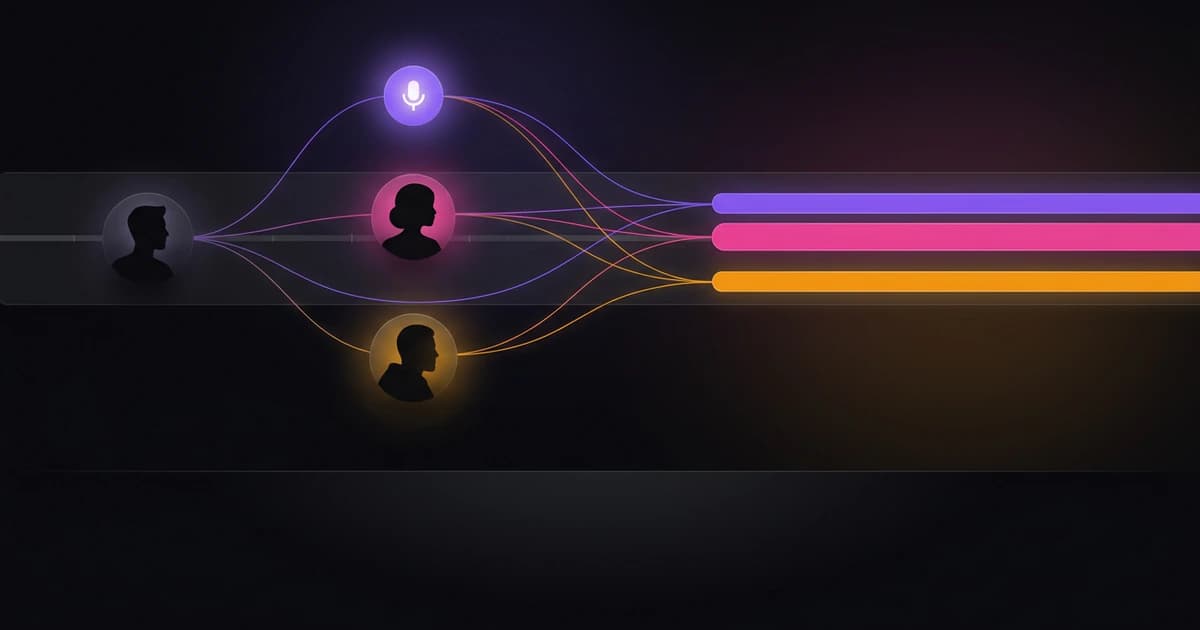
At a high level, speaker recognition in transcription involves two related ideas that are often confused: diarization and identification. Diarization answers “when does each speaker talk?” while identification tries to answer “which known person is this speaker?” Most transcription tools focus on diarization, then let you rename speakers afterward.
Under the hood, the system processes audio into segments and analyzes acoustic features like pitch, timbre, and speaking patterns. It groups segments that sound like the same person and assigns them a temporary label such as Speaker 1 or Speaker 2. The transcript is then aligned so each chunk of text is tied to a speaker segment, often with timestamps.
A simplified flow looks like this:
- Audio is split into small time segments
- Speech is converted to text using an STT engine
- Acoustic features are extracted from each segment
- Segments are clustered into distinct speakers
- Labels are assigned and aligned with text and timestamps
Identification, when available, adds another layer by matching a voice to a known profile. This usually requires prior enrollment of voices or consistent data, and it is less common in general transcription workflows. In practice, most users rely on diarization plus manual renaming, which is faster and sufficiently accurate for editorial use.
Word-level timestamps can further improve usability. When each word has a time anchor, the system can more precisely attach speaker labels and allow you to jump to exact points in the audio. This is especially helpful for subtitles and for fixing short misattributions without reprocessing the entire file.
Wisprs implementation summary: engines, plans, and what changes
Wisprs routes transcription through different engines depending on your plan, which directly affects whether diarization is available. The free tier uses self-hosted Whisper-based models (faster-whisper, with optional configurations), which provide strong baseline transcription but do not include native diarization. Paid plans use ElevenLabs Scribe, which includes native speaker diarization and supports multi-speaker labeling out of the box.
This split matters because diarization is not a toggle you can reliably add on top of any transcript. It is built into the transcription process itself. If you need automatic speaker labels, you should choose a plan that uses an engine with native diarization.
Key differences to keep in mind:
- Free tier: self-hosted Whisper-based models, no diarization, TXT and SRT exports
- Pro and above: ElevenLabs Scribe with native diarization and speaker labels
- Word-level timestamps: available on Pro+ for tighter alignment and editing
- Exports on Pro+: TXT, SRT, VTT, DOCX, JSON with speaker labels and timing data
- Editing: you can adjust text and rename speakers in the dashboard after processing
Accuracy can vary by audio quality, overlap, and number of speakers. As a general policy, Wisprs targets high accuracy on most content, but diarization is still probabilistic. Expect strong results for clean recordings with distinct voices, and plan for light edits when conditions are messy.
Step by step: how to get accurate speaker-labeled transcripts with Wisprs
Start by choosing the right plan for your use case. If you need automatic speaker labels, use a paid plan so your file is processed with ElevenLabs Scribe. The free tier is useful for quick transcripts, but you will need to add speaker labels manually afterward.
Prepare your audio before upload. Clean input produces better segmentation and fewer speaker swaps. Reduce background noise where possible, and avoid heavy compression artifacts. If you can, record each speaker on separate tracks, though diarization can still work on a single mixed track.
Upload your file and confirm the transcription. For longer recordings, allow time for asynchronous processing. Once complete, review the speaker labels in the editor and rename them to real names or roles. If you have word-level timestamps, use them to jump to sections and fix short mislabels quickly.
A practical workflow you can follow:
- Pick a paid plan for native diarization if you need speaker labels
- Upload audio or video in a supported format
- Start the transcription and wait for completion
- Open the editor and review speaker segments
- Rename speakers consistently (e.g., Host, Guest, PM)
- Spot-check sections with overlap or fast turn-taking
- Export in the format you need with labels and timestamps
This process usually yields a clean, usable transcript in one pass, with a short editing step to finalize names and fix edge cases.
Examples, pitfalls, and best practices
Real recordings rarely behave like clean demos, so it helps to see how diarization performs in common scenarios. The goal is not perfection out of the box, but a reliable baseline you can refine quickly.
In a podcast with two hosts and one guest, diarization typically identifies three speakers and segments the conversation accurately when voices are distinct. You can rename Speaker 1, 2, and 3 to the actual names, then export a labeled transcript for show notes. If the hosts have similar voices or speak at the same volume and pace, you may see occasional swaps, which are easy to fix with timestamps.
In a recorded interview with rapid overlap, diarization can struggle at moments where two people talk simultaneously. The system may assign the overlap to one speaker or split it imperfectly. The best approach is to keep overlaps short during recording and fix those spots in the editor. Using word-level timestamps helps you pinpoint and correct only the affected phrases.
In a team meeting with many participants, diarization helps by clustering speakers, but it may create more speaker labels than expected if some participants speak very little or have inconsistent audio. In these cases, it can be faster to merge or rename labels after the fact, especially if only a few speakers are central to your output.
Common pitfalls and how to avoid them:
- Overlapping speech reduces diarization accuracy; encourage clear turn-taking when possible
- Similar-sounding voices can be confused; use consistent mic placement and levels
- Noisy environments degrade segmentation; record in quieter spaces or use noise reduction
- Very short interjections may be misassigned; correct them using timestamps in the editor
- Too many participants can fragment labels; merge and rename speakers after processing
- Inconsistent naming creates confusion; standardize labels before exporting
These adjustments keep your editing pass short and predictable, which is where diarization delivers most of its time savings.
Best practices for higher diarization accuracy
You can improve results before you ever click upload. Good capture habits reduce ambiguity for the model and lead to cleaner speaker boundaries. Even small changes, like consistent mic distance, can reduce label swaps.
Aim for clear separation between speakers. Avoid talking over each other during key sections, and leave brief pauses when handing off the conversation. If you are recording remotely, ask each participant to use a headset or a dedicated mic rather than a laptop speaker and mic combo.
Keep these practices in mind:
- Use one mic per speaker when possible, with consistent distance
- Record in quiet rooms with minimal echo and background noise
- Avoid aggressive audio compression that introduces artifacts
- Encourage turn-taking to limit overlap during important segments
- Keep speaker count reasonable for the session’s purpose
These steps do not require special tools, but they have an outsized impact on diarization quality and editing time.
Wisprs product bridge: plans, exports, editing, and timestamps
Once you understand how diarization works, the product choices become straightforward. If your workflow depends on speaker labels, choose a Wisprs plan that uses ElevenLabs Scribe so diarization is part of the transcription process. After processing, use the built-in editor to rename speakers and correct small errors, then export in a format that preserves labels and timing.
On paid plans, exports like VTT, DOCX, and JSON can carry speaker labels and timestamps, which is useful for subtitles, publishing, and integrations. Word-level timestamps on Pro+ make it easier to align captions and fix brief misattributions without reprocessing. If you only need a quick transcript without labels, the free tier with TXT or SRT export may be enough.
If you want a broader overview of capabilities, see the main page for AI transcription software, or review practical accuracy tips in the transcription accuracy guide. When you are ready to compare plans, the pricing page shows which features are included at each tier, including diarization and export options.
FAQ
How accurate is speaker recognition transcription?
Diarization accuracy depends on audio quality, speaker distinctness, and overlap. Clean recordings with clear turn-taking usually produce strong results, while noisy or highly overlapping audio requires light editing. As a general guideline, expect high accuracy on most content, with short corrections in edge cases.
Does Wisprs support speaker identification on the free plan?
No. The free tier uses self-hosted Whisper-based models that do not include native diarization. Automatic speaker labeling is available on Pro, Studio, Agency, and Enterprise plans through ElevenLabs Scribe.
Can I rename speakers after transcription?
Yes. After processing, you can edit the transcript and rename speakers in the dashboard. This is the standard workflow, since diarization assigns generic labels like Speaker 1 that you convert to real names or roles.
Do exports include speaker labels and timestamps?
On Pro and higher plans, exports such as VTT, DOCX, and JSON can include speaker labels and timing data. Free plan exports (TXT and SRT) are more limited and do not include diarization because the feature is not available on that tier.
What about word-level timestamps?
Word-level timestamps are available on Pro+ plans and help you align text precisely with audio. They make it easier to fix small labeling errors and generate accurate subtitles or captions.
How does file length affect diarization?
Longer files can take more time to process and may introduce more edge cases, especially with many speakers. The underlying diarization approach remains the same, but you should plan for a quick review pass on longer, complex recordings.
Is my data private when using speaker-labeled transcription?
Transcription involves processing audio through the selected engine for your plan. If privacy is a concern, choose your plan and workflow accordingly and avoid including sensitive content you cannot process. For specific policies, refer to the platform’s documentation and settings.
Next steps
If you need clean, speaker-labeled transcripts, start with a plan that includes native diarization and follow the workflow above. Then review, rename, and export in the format your project requires.
- See how Wisprs handles speaker identification and diarization (features & plans)
- Explore the full AI transcription overview: /ai-transcription-software
- Improve results with practical tips: /blog/5-tips-for-better-transcription-accuracy
- Try Wisprs and start a free transcription: upload a file and run your first transcript to compare labeled vs unlabeled workflows