Transcribe audio, video and meetings without leaving Chrome.
Drop in a file or paste a link and your transcript lands in your Wisprs account, ready to export, summarize, translate or share from the side panel. Need a meeting? Turn on recording to capture a Google Meet, Zoom web or Teams web tab, with no bot ever joining the call.
Free on the Chrome Web Store · No bot joins your call · Works with Meet, Zoom web, Teams web
How it works
Connect your account
Click the Wisprs icon in your toolbar and connect your Wisprs account. The extension works on your plan, with the same minutes and features as the web app.
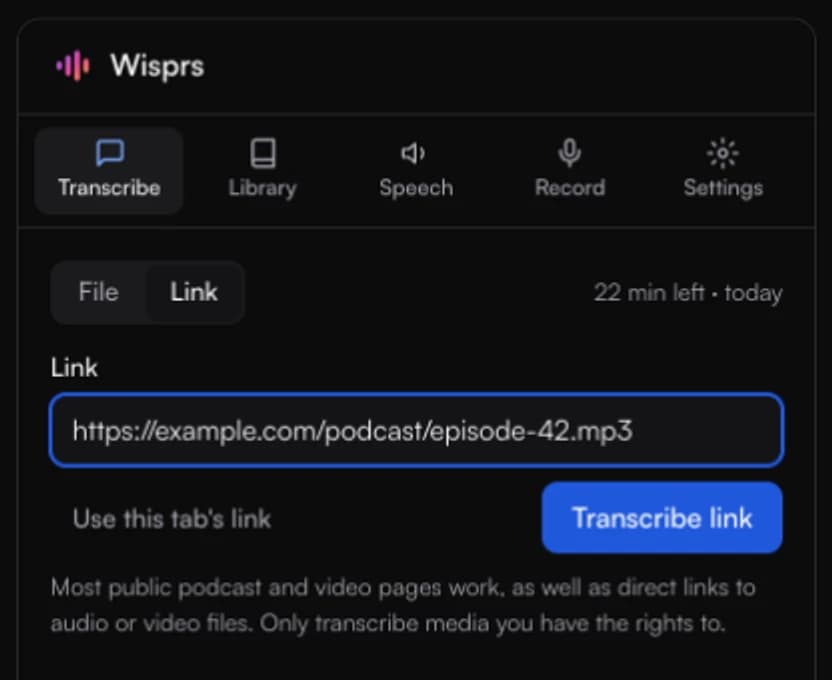
Add a file or link
Drop audio or video files into the side panel, paste a link you have the rights to, or use the page you are on. Uploads keep going while you work.
Use your transcript
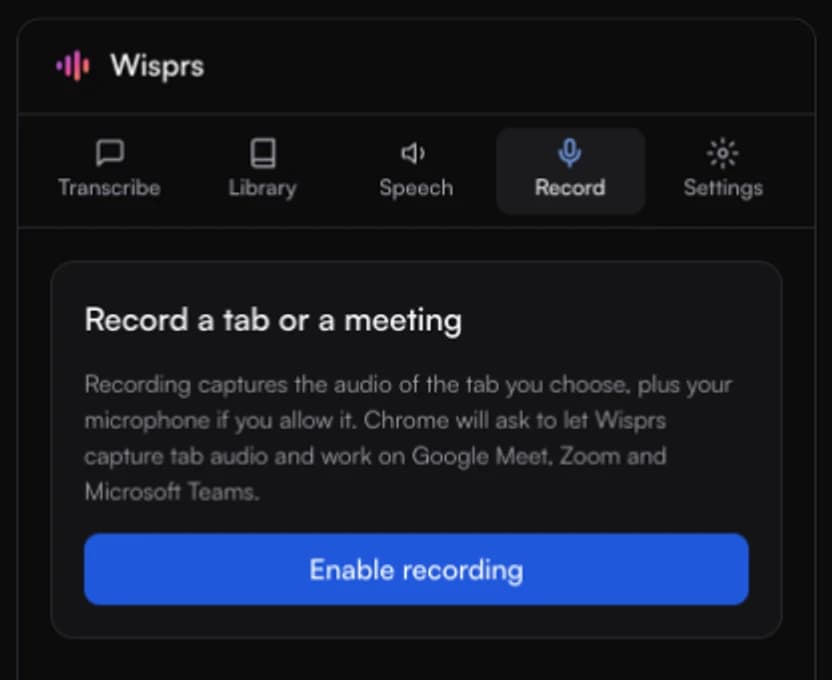
Open it in the side panel to copy, export, summarize, translate or share. Optionally, enable recording to capture a meeting tab with no bot.
Tab capture vs. native transcription vs. meeting bots
Native transcription needs the right plan and host settings. Bot note takers like Otter or Fireflies join your call as a visible participant. Wisprs records the tab you are already looking at.
| Wisprs extension | Native (Meet/Zoom/Teams) | Bot note takers | |
|---|---|---|---|
| Visible bot joins the call | |||
| Works without host or admin permission | |||
| Works on Meet, Zoom web, and Teams web | |||
| Captures any browser tab (webinars, lectures, podcasts) | |||
| AI summary, chapters, and action items | |||
| Transcript in 100+ languages |
Permissions and privacy
The extension records only when you press Start, reads no page content, and sends audio only to your own Wisprs account. Every permission maps to one job:
wisprs.co access
Sends the files, links and text you choose to your own Wisprs account and loads your library.
Side panel, storage and active tab
Runs the app in the side panel, remembers your connection and settings, and reads the current tab address only when you click Use this tab's link.
Tab capture (optional)
Asked for only when you enable recording. Records the audio of the tab you chose, only after you click Start.
Microphone (optional)
Adds your own voice to a recording. Recording works tab-only without it.
Meeting sites (optional)
Asked for with recording. Lets Wisprs use your microphone inside the call and show the saved-recording notice.
Your data, your account
Recordings upload over encrypted connections to your Wisprs library. We do not sell your data or use your content to train AI models. Read the full policy in our privacy policy.
100+ languages
Transcription, translation, and AI meeting notes work across 100+ languages, with speaker recognition on clear audio. See plans and free minutes.
Frequently asked questions
What can the Wisprs extension do?
It is the Wisprs app inside Chrome. Transcribe audio and video files or links, search and organize your library, export, summarize, translate and share transcripts, and turn text into speech. Recording a meeting or any other tab is an optional extra you turn on when you need it.
What data does the extension collect?
Only what you choose to send to your Wisprs account: files, links, text and recordings. Once connected, it also sends basic usage events and diagnostic error categories with a random installation ID and the extension version, and our servers log your IP address. It does not read page content or your browsing history. See section 6 of the privacy policy.
How do I record a Google Meet call without being the host?
Install the Wisprs Chrome extension, open the Meet tab, and click Start recording. Wisprs captures the audio of the tab you are viewing, so you do not need host controls, a workspace admin, or a paid Google plan. Always let participants know the call is being recorded.
Does a bot join my meeting?
No. Wisprs records the audio of your browser tab directly. Nothing appears in the participant list, no third party joins the call, and there is nothing for the host to admit or remove.
Does it work with Zoom and Microsoft Teams?
Yes, with their web clients: Zoom in the browser (zoom.us or zoom.com) and Teams at teams.microsoft.com. Desktop apps cannot be captured by a browser extension; join from Chrome when you want a transcript. Any other browser tab with audio works too.
Is the Wisprs extension free?
Yes. Installing the extension and starting out is free with no credit card. Recording time counts toward the free transcription minutes on your Wisprs account, and paid plans raise the limits.
Do meeting participants have to consent to recording?
Laws in many regions require every participant to consent to being recorded. The extension asks you to confirm that everyone on the call knows before your first recording, and the same responsibility applies to every recording after that.
What happens if my connection drops mid-meeting?
Audio is stored locally in five-second chunks and uploaded with retries, so a dropped connection does not lose the recording. If an upload cannot complete, you can still finalize with everything that reached Wisprs.